Best Pinterest Tools for Bloggers in 2026

By Ruslan Saifullin, Pinterest analytics developer & founder of Pin Stats • Published October 14, 2026
Key takeaways
- What Pinterest tools does a blogger need? One for each step of a content cycle: a keyword tool, a way to see what already ranks, a pin designer, a pin image setup on your blog, a way to publish, and analytics for the traffic. Most of these steps can be done for free.
- What can a blogger do that other pinners cannot? Claim the website, which links your site's pins to your profile and analytics and makes RSS auto-publish available, and add the tags that turn on Rich Pins. Do that before buying anything.
- Do I need a Pinterest plugin for WordPress? Only if you want a separate Pinterest image and description for each post. On WordPress, Tasty Pins, Hubbub Pro and NovaShare all do it; NovaShare is the cheapest at $19.95 a year. Without one, Pinterest uses the images already in the post.
- Do I need a paid scheduler? Not to start. RSS auto-publish turns each new post into a pin, Pinterest's scheduler holds 10 pins up to 30 days ahead, and bulk upload takes 200 pins at a time. A paid scheduler saves time once you pin daily.
- How do I know Pinterest is working for my blog? Pinterest Analytics shows saves and outbound clicks on your own pins. Google Analytics 4 shows what those visitors did on your blog. Neither shows the other's half.
Most bloggers start Pinterest the same way: write a post, make a pin, save it to a board, and hope. A month later the pin has a handful of saves and the analytics show a few clicks, and there is no way to tell whether the keyword was wrong, the pin was weak, or the post simply needed more time.
The fix is not more tools. It is one tool for each step of a content cycle, so each step can be checked on its own. Pinterest is big enough to be worth that care: it reported 640 million monthly active users in Q2 2026 (Pinterest Q2 2026 results). This guide walks through the cycle step by step, names the free and paid tools worth using at each one, and spends the most time on the step every generic roundup skips: what to set up on the blog itself.
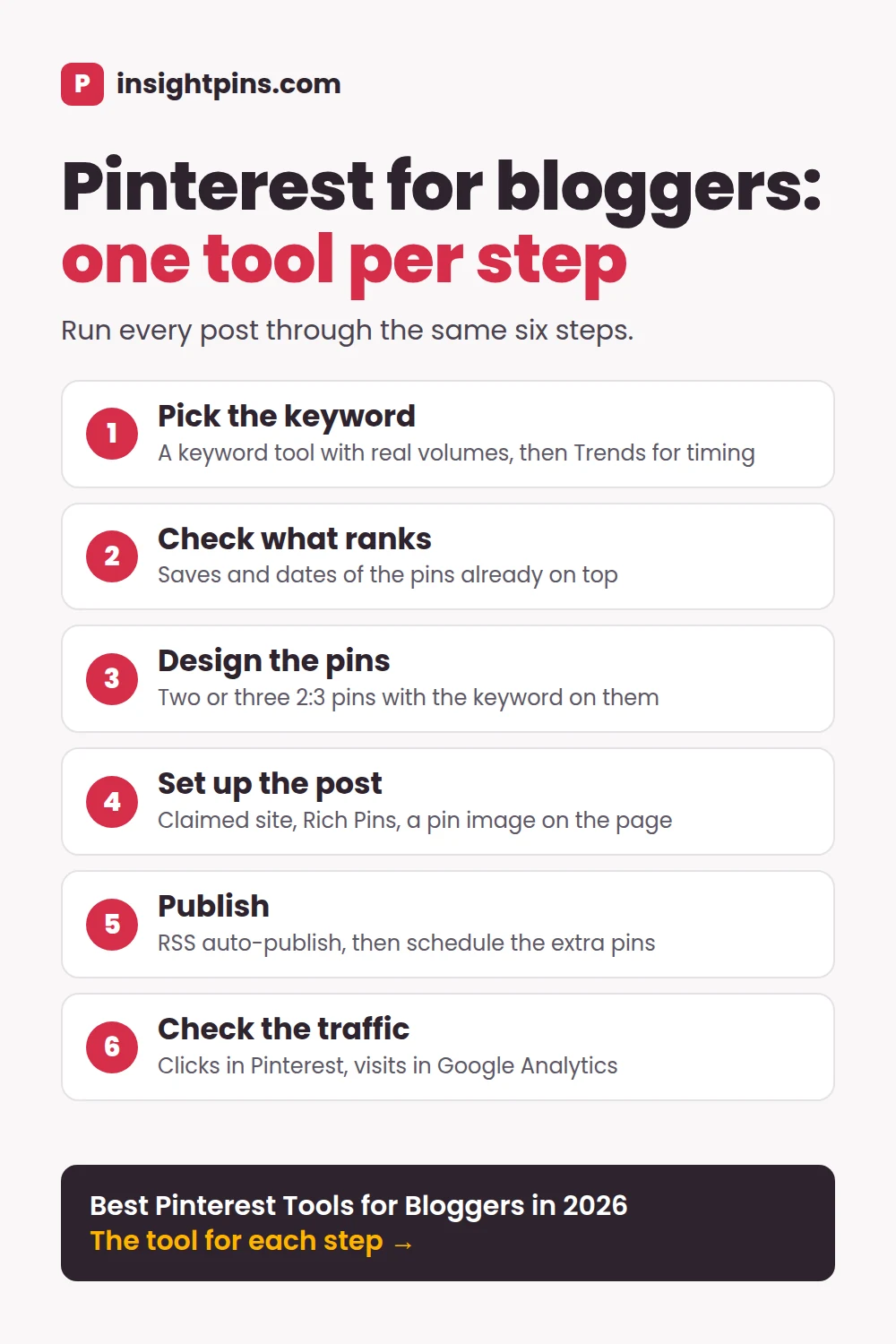
One content cycle in six steps
- Pick the keyword A phrase people search on Pinterest, with real volume
- Check what ranks Whether a new pin can compete for it
- Design the pins Two or three 2:3 pins with the keyword on them
- Set up the post Claimed site, Rich Pins and a pin image on the page
- Publish Auto-publish the post, schedule the extra pins
- Check the traffic Clicks in Pinterest, visits in Google Analytics
- TL;DR: the blogger's Pinterest stack by budget
- Tools on Pinterest, tools on your blog
- Step 1: pick the keyword
- Step 2: check what already ranks
- Step 3: design the pins
- Step 4: set up the blog post
- Step 5: publish and schedule
- Step 6: check the traffic
- Comparison table
- Using ChatGPT or Claude in the cycle
- How to choose a Pinterest tool for your blog
- Frequently asked questions
- Conclusion
TL;DR: The Blogger's Pinterest Stack by Budget
- $0: our free Pinterest keyword tool and Pinterest Trends for keywords, the free Pin Stats extension to check what ranks, Pinterest's own pin builder or a free design tool, a claimed website with Rich Pins, RSS auto-publish and the scheduler, then Pinterest Analytics and Google Analytics 4. That covers every step.
- Under $100 a year: the same, plus a WordPress pin image plugin such as NovaShare ($19.95 a year), and Keyword Explorer ($72 a year) for full keyword research on each post.
- Time matters more than money: add a paid scheduler such as Tailwind ($17.99 a month billed annually) once you pin daily, and Canva Pro if you want brand kits and scheduling from Canva.
Full disclosure: the free keyword tool, Keyword Explorer, Pin Stats and the InsightPins Pin Generator are ours. Each is labelled where it appears, with its limits.
Pinterest Tools for Bloggers Work in Two Places
Most Pinterest tool roundups are written for anyone who pins. A blogger has one advantage the others do not: you own the page the pin points to. Some of the most useful tools in this guide never touch Pinterest at all; they run on your blog.
On Pinterest · any pinner can use these
- Keyword tool and Pinterest Trends - What people search, and when
- Pin Stats - Saves and age of the pins already ranking
- Pin builder or design tool - The 2:3 pin image
- Scheduler and bulk upload - When each pin goes out
- Pinterest Analytics - Saves and outbound clicks on your pins
On your blog · only a site owner can use these
- Claimed website - Your site's pins credited to your profile
- Rich Pins - Title and description pulled from the post
- RSS auto-publish - A pin for every new post
- Pin image plugin - The pin readers save from the post
- Google Analytics 4 - What Pinterest visitors do next
The right-hand column is what makes this a blogger's stack. Set it up once and it works on every post.
The rest of this guide follows one post through the cycle. The running example is a dinner recipe blog publishing a roundup of cheap dinner ideas; the choices in it are illustrative, and the keyword volumes come from our free tool in September 2026.
Pick the Keyword: InsightPins Keyword Tool and Keyword Explorer
A pin is found through search, so the cycle starts with the phrase people type. These two tools are ours, so read this with the scepticism it deserves; every claim can be checked on the free tool, the Keyword Explorer page and the pricing page.
- Free keyword tool. Type a keyword and get the monthly search count Pinterest publishes for that topic, plus related and long-tail keywords with their own counts. No signup and no Pinterest login. Free, 2 searches a day.
- Keyword Explorer. Inside the Pin Stats extension, it reads the keywords Pinterest attached to the top-ranking pins for your seed keyword, adds related interests, boards, questions and Pinterest's own suggestions, and exports the list to CSV or Google Sheets. Extended Pro, $72 a year or $15 a month; Free and Pro see a locked preview.
- Pinterest Trends. Pinterest's own free tool shows when a keyword's searches rise and fall through the year, as a 0 to 100 index. Use it for timing, not for comparing how big two keywords are. It shows up to two years of data, by region. Log in with a free business account in a web browser; it is not in the app.
Where it falls short: Keyword Explorer runs in Chrome on desktop only, and neither tool tracks rankings or keeps a volume history. For the full field, including the paid suites, see our Pinterest keyword research tools roundup.
Worked example · the dinner recipe blog
dinner ideas has about 8.6 million searches a month and millions of pins competing for it. The long-tail list underneath shows cheap dinner ideas at about 209K and quick dinner ideas at about 662K. The new post is a budget roundup, so cheap dinner ideas is the target.
Check What Already Ranks: Pin Stats
Volume says how many people search a phrase. Only the pins already ranking for it say whether a new pin can win. Pinterest shows saves and dates only for your own pins, so for everyone else's you need a tool. Pin Stats is ours: a Chrome extension that shows each pin's saves, repins, likes, comments and creation date as you scroll a search.
- Free: the numbers on every pin, a table of the whole search, sorting by likes, comments and date, basic filters (saves or repins over 5,000 or 10,000), and the first keyword volume on each pin.
- Pro, $21 a year: sorting by saves and any other column, advanced filters, hiding ads and AI-generated pins, every keyword volume per pin, and CSV export.
Two patterns decide it. If the top results are pins several years old with tens of thousands of saves, the keyword is hard. If they include pins from this year with a few hundred saves, Pinterest is still testing what ranks there, and a well-made pin has a real chance.
Where it falls short: Pin Stats shows no impressions, clicks or traffic for any pin, and it does not track pins over time. It reads what is public, in Chrome on desktop.
Worked example · the dinner recipe blog
The top results for cheap dinner ideas include several pins from this year with a few hundred saves each, and most are collages of four to six dishes with a price in the title. The blogger plans the same format for the roundup pin.
Design the Pins: Pin Builder, Canva or a Pin Generator
A blog pin has one job: carry the keyword in text large enough to read at feed size, on a 2:3 image (1000 by 1500 pixels). Any of these does that.
- Pinterest's own pin builder. Free, and the pin is created where it will be published. It now has a text layer for the title, on desktop and mobile. Fine for a pin or two a week.
- Canva. The free plan is enough to design pins from a template. Canva Pro ($120 a year for one person, per Canva's pricing page) adds brand kits and scheduling to Pinterest from its Content Planner.
- InsightPins Pin Generator. Ours, and free at app.insightpins.com. Paste a post's URL and it drafts six pins from the post's title and images, across 38 templates. Exports are JPEG at 1000 by 1500 with no watermark, 20 a day. It also works inside Claude.
Worked example · the dinner recipe blog
The blogger makes three pins for the post: a four-dish collage with "Cheap Dinner Ideas Under $10" as the title, a single-dish photo that doubles as the post's featured image, and a text-led list pin. Three designs give Pinterest three chances to find the one people save.
Set Up the Blog Post: Claimed Site, Rich Pins and a Pin Image Plugin
This is the step only a blogger has, and the one generic roundups skip. Claiming, Rich Pins and the Save button are free and set up once for the whole site; a pin image plugin then adds the Pinterest image to each post.
Claim your website (free)
Claiming tells Pinterest you own the site. Pins saved from your pages then show your profile picture and link to your profile, Pinterest Analytics can filter to the pins that link to your site, and RSS auto-publish becomes available. Go to Settings → Link to Pinterest, click Claim next to Websites, and verify with an HTML tag, an uploaded HTML file or a DNS TXT record (Pinterest help: claim your website). On WordPress, SEO plugins such as Yoast have a field for the HTML tag.
On Substack, Medium and similar platforms you usually cannot add code to the page. If your blog has its own domain, check whether you can add a DNS record to it. If you cannot verify the site any of these ways, you cannot claim it, and RSS auto-publish is out of reach.
Rich Pins (free)
Rich Pins pull the title and description from your post and keep them in sync when you edit it. Article Rich Pins read the Open Graph or Schema.org tags in the page's head, which mainstream SEO plugins already output; recipe Rich Pins read Schema.org Recipe markup, which recipe card plugins add. Pinterest's help page describes no application step: once the tags are there, pins sync within about 24 hours and update automatically (Pinterest help: Rich Pins).
A pin image plugin for WordPress
By default, a reader who saves your post to Pinterest gets whichever image they pick and a description Pinterest guesses. A pin image plugin lets you choose: a 2:3 Pinterest image for the post (often hidden from the page itself), its own Pinterest description, and a Save button on hover. All three below do the core job; they differ in price and in whether there is a free version.
Tasty Pins
$49 the first year, then $99 a year
- Pinterest image per post - Yes
- Hidden pin images - Yes
- Custom pin description - Yes
- Hover Save button - Yes
- Free version - No
From WP Tasty, the maker of the Tasty Recipes plugin. Keeps alt text separate from the Pinterest description. One site, 14-day money-back guarantee (Tasty Pins pricing).
Has a free version
Hubbub
Lite free; Pro is a yearly plan per site
- Pinterest image per post - Pro
- Hidden pin images - Pro
- Custom pin description - Pro
- Hover Save button - Pro
- Free version - Yes, Lite
Formerly Grow Social, now owned by NerdPress. Hubbub Lite (30,000+ installs, updated September 2026) adds share buttons and uses the featured image and post title for Pinterest; the Pinterest controls are in Pro (Hubbub on WordPress.org).
Cheapest
NovaShare
$19.95 a year
- Pinterest image per post - Yes
- Hidden pin images - Yes
- Custom pin description - Yes
- Hover Save button - Yes
- Free version - No
A lightweight sharing plugin that also sets a custom pin title and lets you stop pinning on any image. One site (NovaShare pricing).
Skip plugins that have stopped updating. Social Warfare, once a common choice, was last updated in March 2025, and WordPress.org now warns that it may no longer be maintained. On Squarespace, Wix and other builders, look for a social or Pinterest image field in the page settings instead.
The Pinterest Save button
Pinterest still documents its own Save button script, with an option to show the button when a reader hovers over an image and an attribute that stops pinning on any image you do not want saved (Pinterest developers: buttons). The old widget builder is gone, though, so most bloggers get the button from one of the plugins above rather than adding the script by hand.
Worked example · the dinner recipe blog
The site is already claimed. The blogger adds the collage pin to the post as its Pinterest image, writes a pin description that starts with cheap dinner ideas, and keeps the alt text a plain description of the photo for readers who use screen readers.
Publish and Schedule: RSS Auto-Publish, Pinterest's Scheduler or Tailwind
Pinterest's own publishing tools do more than most bloggers use. Start with them, and pay for a scheduler only when they become the bottleneck.
- RSS auto-publish. Add your blog's feed and Pinterest turns each new post into a pin on the board you choose, up to 200 pins a day. It needs a claimed website, and the pin takes its title and description from the feed (Pinterest help: auto-publish from RSS).
- Pinterest's scheduler. Up to 10 pins scheduled at once, each up to 30 days ahead, on desktop or in the app. You can change a scheduled pin's date, title, board, description and link, but not its image (Pinterest help: schedule pins).
- Bulk upload by CSV. Up to 200 pins in one spreadsheet, each with its own publish date, which makes it a free 200-pin scheduler. Our free Pinterest CSV checker lists every row Pinterest would refuse before you upload.
- Tailwind. The paid scheduler built for Pinterest. Its Pin Scheduling & Creation plan costs $17.99 a month billed annually, or $29.99 billed monthly, per Pinterest account. New accounts get a one-time trial of 10 scheduled pins and 5 keyword searches. Pricing checked October 5, 2026.
- RSS auto-publishFree - A pin for every new post, automatically, up to 200 a day. Keep it on at every rung.
- Pinterest's schedulerFree - Extra pins one at a time: 10 in the queue, each up to 30 days ahead. Enough for a few extra pins a week.
- Bulk upload by CSVFree - A week or a month of pins in one spreadsheet: up to 200 per file, each with its own publish date.
- A paid scheduler such as TailwindPaid - Daily pinning with suggested times, from $17.99 a month billed annually.
Move down a rung only when the one above is what slows you down.
For every other scheduler and what its free plan really allows, see our Pinterest scheduling tools roundup.
Worked example · the dinner recipe blog
RSS auto-publish creates the first pin when the post goes live, from the image in the feed: the post's featured photo of a single dish. The collage and the list pin go into Pinterest's scheduler for one and two weeks later, to a second relevant board, so the post gets three chances spread over a month instead of three pins in one day.
Check the Traffic: Pinterest Analytics and Google Analytics 4
Pinterest can tell you a pin earned a click. Only your own site can tell you what that visitor did next. A blogger needs both, and both are free.
- Pinterest Analytics. For your own pins: impressions, saves, pin clicks, outbound clicks and engagements, over any range in the past 18 months, with CSV export. Filter by claimed account to see only the pins that link to your blog (Pinterest help: analytics). It cannot see what a visitor did after the click.
- Google Analytics 4. Open Reports → Acquisition → Traffic acquisition, add Session source / medium as a secondary dimension and filter it to pinterest. Pinterest now adds
utm_source=Pinterestandutm_medium=Organicto the links on organic pins by default, so look for Pinterest / Organic as well as pinterest.com / referral. Add Landing page to see which posts the visits land on.
- Impression
- Save
- Outbound click
- Visit to your blog
- Sign-up or sale
- Pinterest Analytics - Impressions, saves and outbound clicks, on your own pins only
- Pin Stats - Saves on any pin, yours or not
- Google Analytics 4 - What visitors do on your blog
No tool sees the whole path. Pinterest's numbers stop at the click; your blog's start at the visit.
For the full picture of what each analytics tool can and cannot measure, see our Pinterest analytics tools roundup.
Worked example · the dinner recipe blog
A month later, the collage pin has most of the outbound clicks, and GA4 shows those visitors staying on the roundup and opening a second recipe. The single-dish pin has saves but few clicks. The next roundup gets a collage pin first, and the cycle starts again with a new keyword.
- Day 0 Post goes live RSS auto-publish pins the featured photo
- Day 7 The collage pin Scheduled to a second relevant board
- Day 14 The list pin The third design goes out
- Day 30 Check the traffic The collage pin has most of the outbound clicks
- Next post Collage first The cycle starts again with a new keyword
Illustrative, following the dinner recipe blog through the six steps above.
Pinterest Tools for Bloggers Compared
| Step | Tool | What it does for a blogger | Free | Paid from |
|---|---|---|---|---|
| 1 · Keyword | InsightPins free keyword tool (ours) | Monthly Pinterest search counts, related and long-tail keywords | 2 searches a day | - |
| 1 · Keyword | Keyword Explorer (ours) | Full keyword research for a post, exported to CSV or Sheets | Locked preview | $72 a year (Extended Pro) |
| 1 · Keyword | Pinterest Trends | When searches for a keyword rise and fall | Yes, with a business account | - |
| 2 · What ranks | Pin Stats (ours) | Saves, repins and age of the pins already ranking | Yes | $21 a year (Pro) |
| 3 · Design | Pinterest pin builder | A pin with a text layer, made where it is published | Yes | - |
| 3 · Design | Canva | Pin templates, brand kit, scheduling on Pro | Yes | $120 a year (Pro) |
| 3 · Design | InsightPins Pin Generator (ours) | Six draft pins from a post URL | 20 exports a day | - |
| 4 · Blog | Claimed website | Your profile on pins from your site, analytics filter, RSS auto-publish | Yes | - |
| 4 · Blog | Rich Pins | Title and description synced from the post | Yes | - |
| 4 · Blog | Tasty Pins | Pinterest image and description per post; hidden pin images | No | $49 first year, then $99 a year |
| 4 · Blog | Hubbub | Share buttons; Pinterest image controls in Pro | Hubbub Lite | Pro, yearly per site |
| 4 · Blog | NovaShare | Hidden Pinterest images, custom pin text, hover pins | No | $19.95 a year |
| 5 · Publish | RSS auto-publish | A pin for every new post | Yes, up to 200 a day | - |
| 5 · Publish | Pinterest scheduler | 10 pins queued, up to 30 days ahead | Yes | - |
| 5 · Publish | Pinterest bulk upload | Up to 200 pins per CSV, each with a publish date | Yes | - |
| 5 · Publish | Tailwind | A Pinterest scheduler with suggested times | One-time trial of 10 pins | $17.99 a month, billed annually |
| 6 · Traffic | Pinterest Analytics | Saves and outbound clicks on your own pins | Yes | - |
| 6 · Traffic | Google Analytics 4 | What Pinterest visitors do on your blog | Yes | - |
Prices checked October 2026, in US dollars. Plans change; check the vendor's pricing page before you buy.
Using ChatGPT or Claude in the Pinterest Cycle
Neither ChatGPT nor Claude can claim your website, publish a pin or see your Pinterest numbers on its own. What they do well is the writing and reading around each step: the Pinterest title, description and alt text for every post, a few title variations for the extra pins, and a read of your exported numbers to decide which posts deserve fresh pins.
ChatGPT or Claude: which to use for each job
| Job | ChatGPT | Claude | Pick |
|---|---|---|---|
| Write a post's pin title, description and alt text | Yes | Yes | Either |
| Make pin images for a post | Built-in image generation, including 2:3 portrait | No built-in image generation; works through connectors such as the InsightPins Pin Generator or Canva | ChatGPT for new images; Claude for template pins built from the post's own photos |
| Read GA4 and Pinterest Analytics exports and pick the posts to re-pin | Yes, from attached CSV files | Yes, from attached CSV files | Either |
| Publish to Pinterest | Only through a connector to a service that uses Pinterest's official API | Same | Neither on its own |
Features as described in October 2026. Both assistants change often; check before you build a routine on one feature.
Use the one you already pay for. Choose ChatGPT if you want it to generate images; choose Claude if you would rather build pins from your post's own photos through the Pin Generator connector.
Two prompts to copy
Replace everything in square brackets. Both work in either assistant.
Read my blog post: [URL]
The Pinterest keyword for it is "[keyword]".
Write:
1. A pin title of up to 100 characters that starts with the keyword
2. A pin description of up to 500 characters that says what the reader gets and uses the keyword once, near the start
3. Alt text for the pin image that plainly describes what it shows: [what the image shows]. No keyword stuffing; it is for people using screen readers
4. Two more titles for extra pins, each from a different angle (a number, a problem, a result)
Match the tone of the post and make no claims it does not make. Count the characters of each title and description and show the counts.I attached two files:
1. A Google Analytics 4 export of landing pages for visits from Pinterest (session source "Pinterest" or "pinterest.com") over [the last 30 days]
2. A Pinterest Analytics export of my top pins over the same period
Using only these numbers:
- Which 5 posts get the most Pinterest visits, and how engaged are those visitors?
- Which pins have many saves but few outbound clicks? What might the pin be giving away?
- Which 3 posts deserve new pins next month, and why?
If a number you need is not in the files, say so instead of estimating it.Prompt, project or connector: which to set up
- A prompt is enough for one post. Copy one of the two above.
- A project suits a blog you pin every week, in either assistant. Put your board names, your main keywords, a few notes on your voice and a past post with pins you liked into a ChatGPT or Claude project once, then paste each new post's URL.
- A connector (MCP) lets the assistant act in another service. Our pin design tools roundup covers the InsightPins Pin Generator connector, which makes pins from a post's URL inside Claude (ours, free, 20 renders a day). It designs pins; it does not publish them.
Prompt 2 reads your own numbers. To give an assistant the competition too, the free Pin Stats extension shows the saves and age of the top pins for a keyword as you scroll. On Pin Stats Pro you can export the whole search as a CSV and attach it.
How to Choose a Pinterest Tool for Your Blog
Before you add any tool, run it past five questions.
- Which step does it do? If it does a step you already cover for free, it has to be clearly faster or better to earn its price.
- Does Pinterest already do it? Claiming, Rich Pins, RSS auto-publish, scheduling, bulk upload and analytics for your own pins all cost nothing.
- Does it work on your blog platform? WordPress plugins do nothing on Squarespace, Wix or Substack. Check what your platform lets you add before you buy.
- Does it connect through Pinterest's official API? A scheduler should never ask for your Pinterest password.
- Does it measure what you care about? Saves are an interest signal; traffic and sign-ups happen on your blog. A tool that reports only one of them answers half the question.
Frequently Asked Questions
What Pinterest tools does a blogger need?
One for each step of a content cycle: a keyword tool, a way to see what already ranks, a pin designer, a pin image setup on the blog, a way to publish, and analytics for the traffic. A free version exists for every step, so start there and pay only where a free tool slows you down.
Do I need a Pinterest plugin for WordPress?
Not to start. Without one, readers can still save your post, and Pinterest uses the images already on the page. A plugin such as Tasty Pins, Hubbub Pro or NovaShare is worth it once you want a dedicated 2:3 Pinterest image and your own pin description on every post. NovaShare is the cheapest at $19.95 a year.
Should I claim my website on Pinterest?
Yes, before anything else. It is free, it puts your profile on pins saved from your site, it lets Pinterest Analytics filter to the pins that link to your blog, and RSS auto-publish needs it. You verify with an HTML tag, an HTML file or a DNS record.
Do I need Tailwind for a small blog?
Usually not. RSS auto-publish pins every new post, Pinterest's scheduler holds 10 pins up to 30 days ahead, and bulk upload takes 200 pins per CSV, all free. Tailwind's Pin Scheduling & Creation plan, at $17.99 a month billed annually, earns its price once you pin daily and want suggested posting times.
How do I see how much traffic Pinterest sends my blog?
In Google Analytics 4, open Reports, then Acquisition, then Traffic acquisition, and filter Session source / medium to pinterest. Pinterest adds utm_source=Pinterest and utm_medium=Organic to organic pin links by default, so look for Pinterest / Organic as well as pinterest.com / referral. Pinterest Analytics shows the outbound clicks on its side.
Can ChatGPT or Claude help with Pinterest for my blog?
Yes, with the writing and reading: pin titles, descriptions and alt text for each post, and a read of your Google Analytics and Pinterest Analytics exports to decide which posts deserve new pins. Neither can claim your site, see your Pinterest data or publish pins on its own, and keyword volumes still have to come from a keyword tool.
Conclusion: One Tool per Step
A blogger does not need a long list of Pinterest tools. They need one for each step of the cycle, and a way to tell which step let a post down. For most blogs that is a free keyword tool, a look at what already ranks, a simple pin designer, a claimed site with Rich Pins, RSS auto-publish and the scheduler, and Google Analytics alongside Pinterest Analytics.
- Start with what Pinterest gives you: claiming, Rich Pins, RSS auto-publish, the scheduler and analytics cost nothing.
- Spend first where the blog is involved: on WordPress, a pin image plugin decides which image and description readers save from each post you set it up on.
- Pay for a scheduler last, when pinning by hand is what holds you back.
Then run each post through the same six steps, and change one thing at a time.
Next step: before you write the next post, check what already ranks for its keyword. Install Pin Stats for free, search the keyword and read the saves and dates on the top results. Then you know whether the pin can win before you design it.